Photoshop Tips and Tutorials
This tutorial is for people who are just starting out Photoshop or for the people who have been using Photoshop but don’t know how to use Layer Masks.
The basics of Layer masks are incredibly simple but very powerful.
As always we’ll go over a simple tutorial that will quickly teach you how to use Layer Mask Basics. I think that actually doing something is the best way to learn. At least doing some thing is much, much better than just reading about it
First, a tiny intro:
What happens when someone wears a mask?
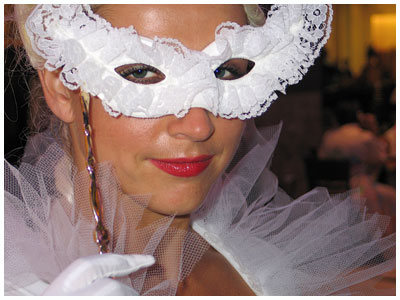
Dumb Question, yeah? It’s obvious that everything behind the mask is not visible and everything else is visible. That’s basically how Layer masks work except that you choose where the mask is and how opaque it is. Simple huh? So let’s follow a quick tutorial.
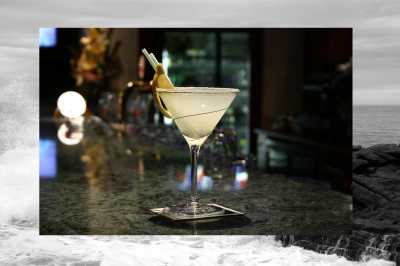
The Final Result of the tutorial is:
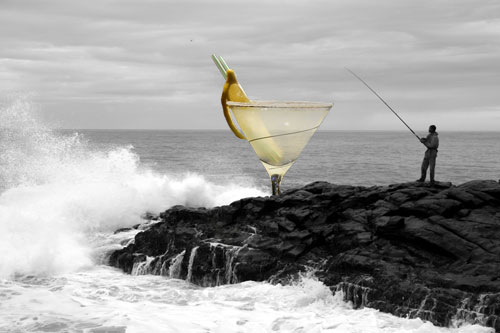
Yeah, so it’s a glass that is behind some rocks but in front of the ocean. Notice that the glass is partially transparent and you can see the ocean from inside it but the straw, slice of lemon and the stem of the glass are opaque. And yeah… I know the image isn’t going to win any awards but it’s great for explaining Layer masks
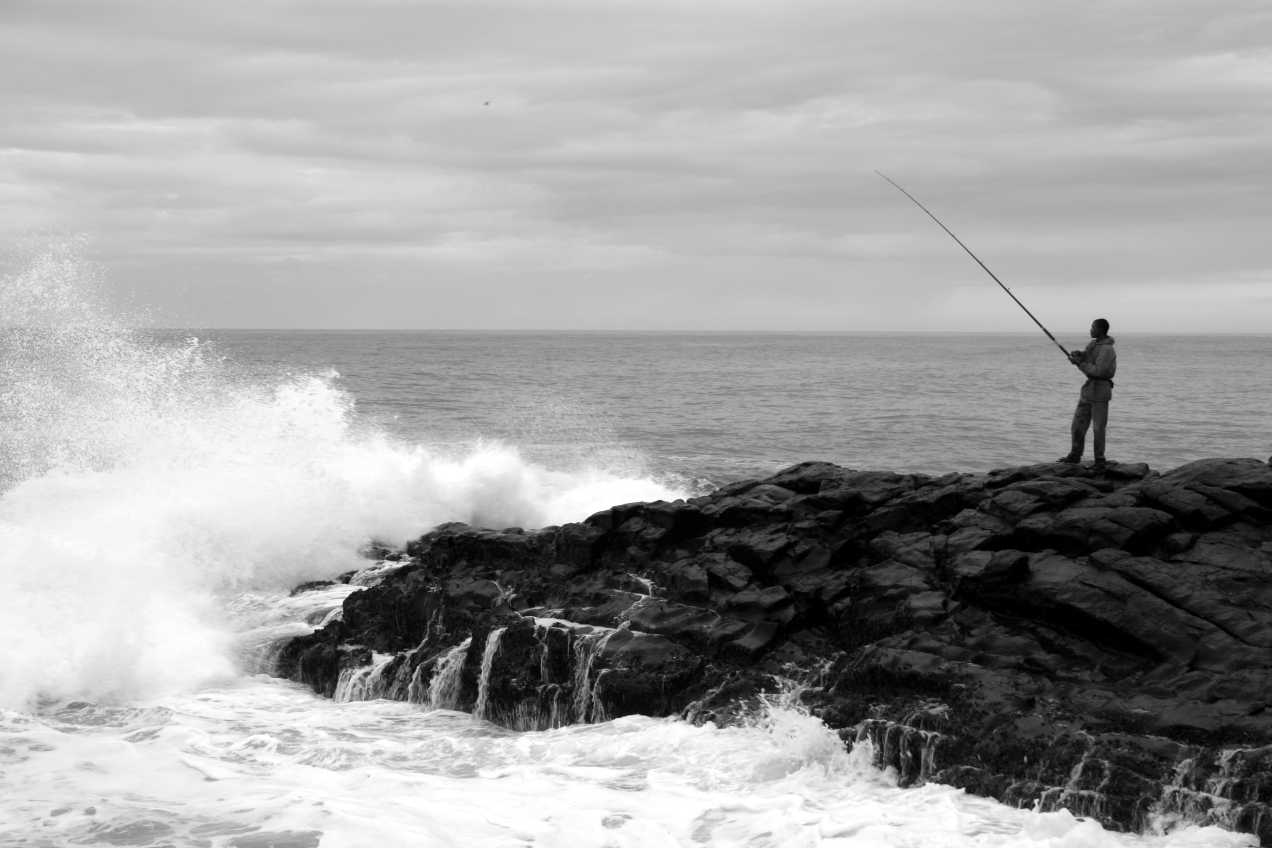
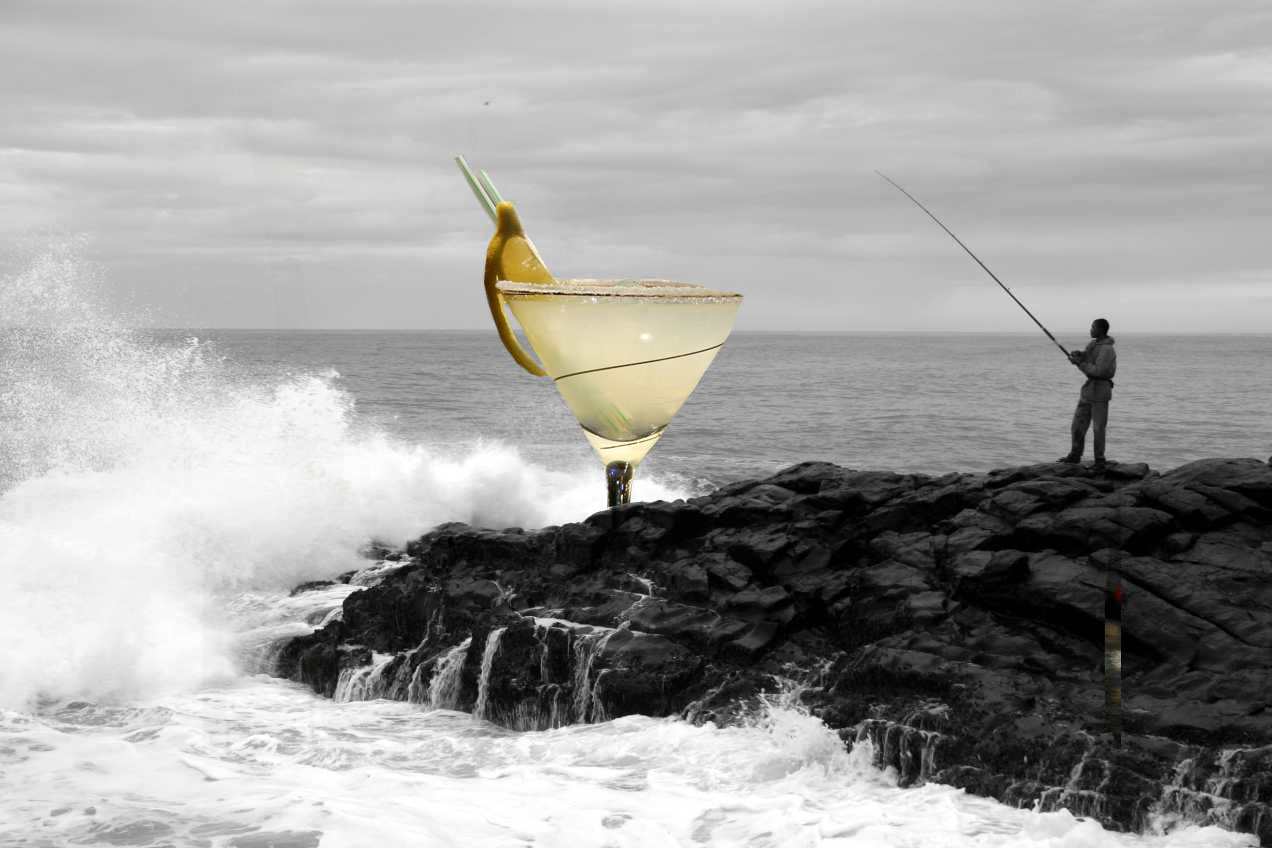
Step 1: Find two images that you want to combine. Here are the images I used:
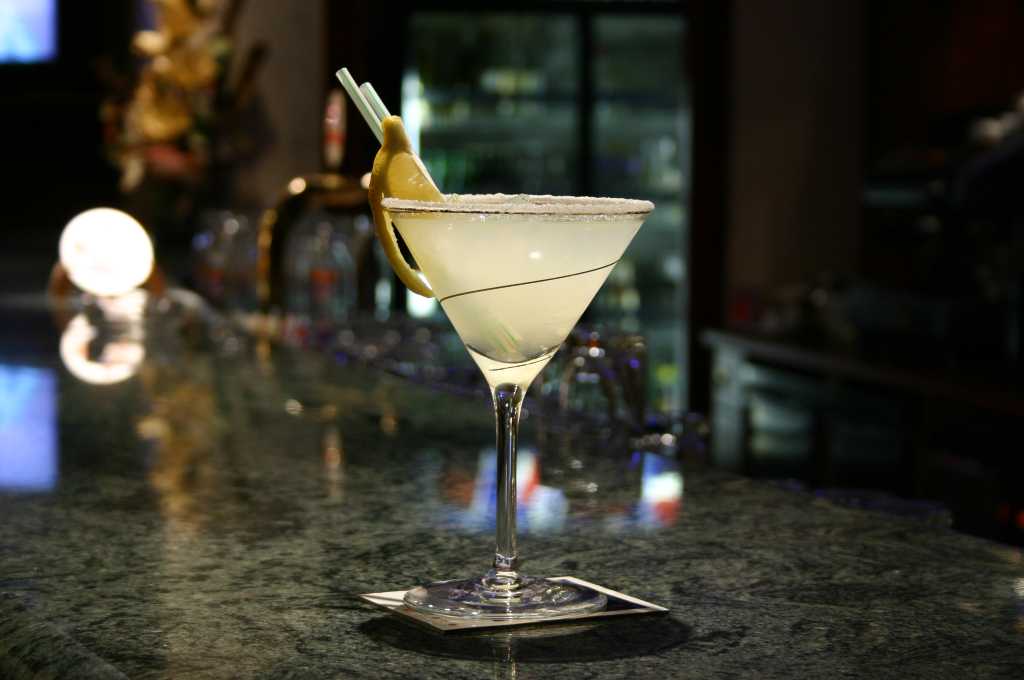
Step 2: Open both the images in Photoshop. Then, choose the Arrow / Move Tool. Click on the glass image and drag it over to the image with the guy fishing. You can resize the glass so that it’s not too big or you can leave it the way it is. Your choice. Click here for a short flash video of this step if you are having trouble moving the glass image on top of the ocean image.
Step 3: Choose the layer with the glass and then click on the Layer Mask button. It’s the rectangle with the circle in it.
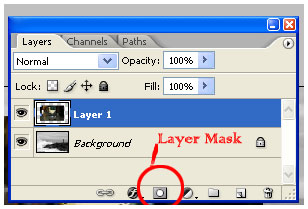
After clicking you’ll see something like this:
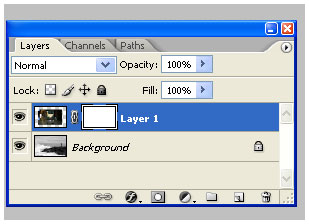
There it is! The layer mask. Currently it is set to reveal all of the image, meaning that the mask is off and nothing is hidden (since it is revealing everything!)
Now we actually use the mask. First let’s think of what we’re trying to do.
If we used just layers and opacity of layers to accomplish this then we’d end up cutting up glass in lots of portions and messing with the opacity and it would be tedious and really, really annoying and would take a long time. That is why we’ll use the layer mask!
Hmm, you’ll also notice that when you click on the layer mask your colors in the color picker turn to black and white. So here it is… the secret of Layer masks: Depending on what the settings are, the color WHITE shows or reveals the image AND the color BLACK hides or masks the image (We’re talking about the image on which the layer mask is applied, not the layer below it). So on to step 4…
Step 4: Grab your PAINTBRUSH. Choose BLACK and start wildly painting. Paint over the stem so it looks like the rocks are infront. Paint over the background of the glass image. Keep on painting until you only have the glass. Now what if you make a mistake and hide part of the glass? No problem. Layer masks are not destructive so just change the color to WHITE and paint over the glass and it’ll magically reappear. You can basically adjust the brush size, or the shade of
gray and you get way more control than using destructive methods. If you use an eraser you can’t easily undo something you did 20 steps before etc etc.
So here is my version of this step:
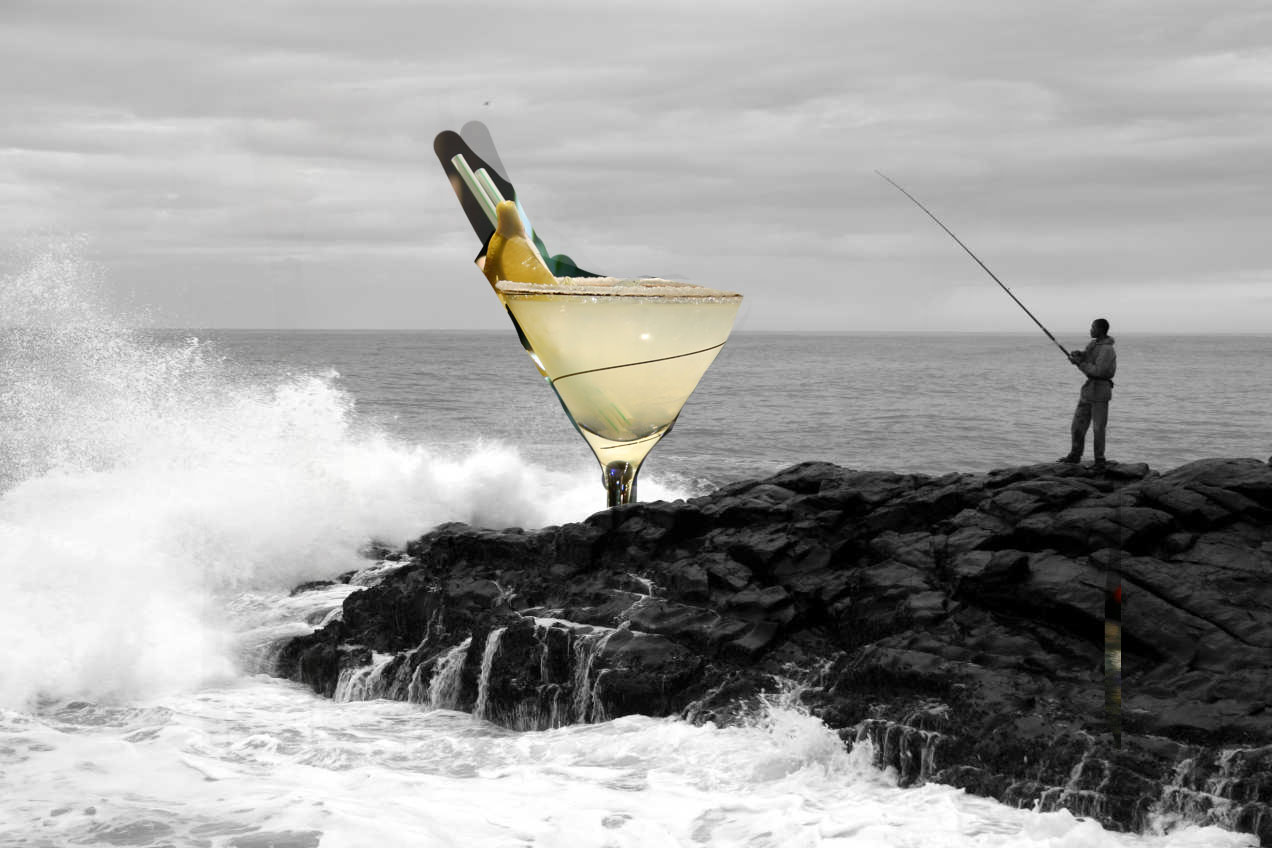
I’m not worried about being perfect because nothing is being deleted. It’s all there. Just hit the “X” key on your keyboard and you’ll quickly switch between black and white and you can fix your mistakes. Now after you have quickly erased everything that is not needed just zoom waaay in and with a small brush just fix up the edges so they look good. Be sure to get that area in between that lemon slice
.
So now I have something like this:
Step 5: Finally, we need to make the glass a bit transparent. You can do two things. You can a) Set the opacity of the brush to 50% and then paint right over the glass or b) You can change the color of your brush to gray and then paint over the areas you want to make transparent. Using the current settings (i.e White reveals) then if you make your brush dark gray then your glass will be less opaque and more transparent. If you choose light gray then your glass will appear less transparent. Just
paint it gray in the areas where you want it to appear slightly transparent but not in the areas with the lemon slice and straws. If you can’t make the transparent area look smooth (ie. you can see the brush strokes) then just grab the smudge tool and lightly smudge the gray area until it looks good and smooth. You can use any filter or tool on the layer mask and it’ll give you a new sort of effect
.
That is all. You have the final image:
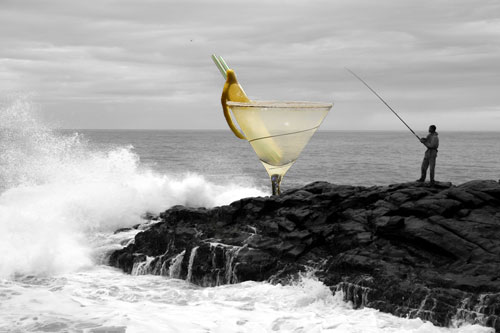
I hope I was able to show you how layer masks can make your life easier. This is obviously not the only thing you can do with layer masks so keep playing with this and learn more. If you have any questions then leave me comments below and I’ll try my best to get back to you in a timely fashion.
Notes:
Photoshop Tips is a blog community of Photoshop artists and designers. You will be able to find great original photoshop tutorials written in a very simple and helpful way in order to teach you photoshop for free!
Feel free to browse the site and leave comments and suggestions! ^__^
UK
September 10th, 2006 at 9:23 am
TY vry much
Rúnar
September 10th, 2006 at 11:22 am
Thanks, it worked for me.
giegie
September 11th, 2006 at 3:38 am
i really want to know how to edit such pictures through adobe photoshop
giegie
September 11th, 2006 at 3:44 am
well, it help me a lot!!!
amy
September 11th, 2006 at 11:52 pm
hey im trying to do this but mine keeps saying my layer is locked or something how do i change that so i can move the picture on to the other one please write back i really want to get to no how to use photoshop
pl4yboyb1tch@hotmail.com
garg
September 12th, 2006 at 10:00 pm
Thanks every one
Amy > If it says that it is locked try to double click on the background layer and then click ok. The layer name will change from “Background” to “Layer 1″ and then you’ll be able to click and drag it over to the second image
Please let me know if that does not work.
Krupa
September 13th, 2006 at 9:54 am
Hi!!
I am trying to implement this tutorial but i dont’t know i can not import second image in new layer. How to import two diffrent image in two diffrent layers? I am a biginner.
Thanks,
garg
September 14th, 2006 at 8:23 am
Hello Krupa
What version of Photoshop are you using? I created a short flash video for you on how I imported the second image into a new layer in Photoshop CS2. You can view the video by clicking here:
How to import the second image in a new layer
I hope that helps. Please let me know if that does not solve the problem
jagath
September 15th, 2006 at 2:20 am
It’s realy cool & easy.I think I got what you tried to teach.
Thank you very much for your hard work.
Keep it up.
Sam
September 15th, 2006 at 4:34 pm
It worked the firts time i did it really well, but now i couuple of days on its not. It’ll maks a layer, but not unmask it… i must of changed some setting, how can i reset it?
lwilliam
September 16th, 2006 at 7:36 pm
I have always been afraid of asking anyone about the layer mask tecnik and you have made it so easy and fun to do, a big THANK YOU …. I got it. There are alot of me’s out here and only a few you’s…so keep pumping out the basic stuff. It is appreciated..lwilliam7
James
September 20th, 2006 at 10:06 am
Thanks very much, great tutorial. I learnt alot.
keep ‘em coming…
Krupa
September 20th, 2006 at 2:31 pm
Hi Garg!!
Thank you very much. I tried this tutorial using your video help and now its working good.
Thanks.
HARISH
September 21st, 2006 at 4:21 am
hey buddy!!!!!!!
u made it very clear man……grt teaching….
keep it up……do write more tutorials,,,or even a book on photo shop
thanx
george
September 27th, 2006 at 2:34 am
really i leared clearly about layer mask. the photo created was really superb.
garg
September 27th, 2006 at 6:44 am
Thank you everyone
I am writing more tutorials. I’ll post them soon
Also please feel free to suggest what tutorials you’d like to see. The most difficult thing for me is to decide what to write next
Eric
September 28th, 2006 at 3:38 am
Really easy and helpful tutorial! I tend to do most ‘effects’ by hand and this will be fun to work with. Keep ‘em comming.
bart
September 28th, 2006 at 4:23 am
it do’nt work. I got the same problem like amy.
Julie
October 1st, 2006 at 10:51 am
Super! Thanks for providing such a much-needed service. So appreciated.
David
October 2nd, 2006 at 6:44 pm
Thank you! Dude, I just got ImageReady, simply hours before I found this… You wouldn’t believe how lost I was…
Thank you for giving me an example of the wonders ImageReady has to offer
crito
October 6th, 2006 at 3:20 am
hey… that was great tuturial…i learned a lot… thanks…what about applying text.. say if we use pictures and add text as if it is the person that is talking… like cartoon… yes… cartoon figures with messages… would appreciate it very much..
Randy
October 8th, 2006 at 6:50 pm
Garg, Excellent tutorial for us beginners. Thank you for the easy analogies too, since PS is so complicated that we tend to get overloaded with the “less-than-simple” names of a few tools. Please keep them coming in your easy-to-learn style, i.e. using the “Unsharp Mask”. Thanks again!
Heidi
October 10th, 2006 at 4:05 pm
I am a beginner and this has helped me out a bunch. Really appreciate you taking the time to explain to us newbies.
Glenda
October 21st, 2006 at 8:19 pm
Thanks so much, I have played with Photoshop to no end but this part escaped me until I read this, all of a sudden t clicked! I had absolutely no problems once I tried your project.
Matthew
November 12th, 2006 at 10:20 am
Thanks that was very helpful and it worked
Khurrum
November 25th, 2006 at 12:31 pm
Thank you all
buboy
November 28th, 2006 at 3:25 am
THANKS…gud tut…it helped me alot..
http://hometown.aol.com/xyi555/stocking-stuffers
December 8th, 2006 at 3:32 am
4..[url=http://hometown.aol.com/xyi555/christmas]christmas[/url][url=http://hometown.aol.com/xyi555/test]test[/url][url=http://hometown.aol.com/xyi555/walmart]walmart[/url]
packetjunkie
December 10th, 2006 at 11:28 am
I just started working with Photoshop less than a week ago and I have to say this is an excellent tutorial. Thanks!
jgray
December 31st, 2006 at 8:33 pm
Awesome tutorial. Thanks very much.
helen
January 9th, 2007 at 7:45 am
and what about the vector masks?????? and what is really a vector and where it helps????
i’m lost..photoshop is really really b i g!!
sanju
January 28th, 2007 at 1:01 am
supppppppppeeeeeeeerrrr tutorial….really helped me…thanks a ton…
Katie
February 5th, 2007 at 5:02 pm
Hi, Sure hope that you can help me. I just started using Photo Shop Cs2. I found your tutorial for layer masks. I can get to step 4, but can not get the paint brush to do anything. What I am doing wrong! Would appreciate any HELP!
Thank You.
Khurrum
February 11th, 2007 at 12:33 pm
Katie > Make sure that in the Layers Palette you have the proper layer mask selected. Click on the Mask and then paint on it
Tim
February 18th, 2007 at 10:59 pm
Great tutorial. Having trouble getting black as a paint in my brush. I have photoshop 7 and the color comes in light red. Then when I move the picture over all I get is the painted area to move. What should I do to get the center area like your glass to move?
mick kendrew
April 5th, 2007 at 2:20 pm
Lots of thanx
mick kendrew
April 5th, 2007 at 2:22 pm
great tutorial
Tom B
April 16th, 2007 at 3:02 pm
Hey, thank you V much, I’ve spent weeks messing around trying to work photoshop out… Thanks for the helping hand. Im sure I will be re-visiting these pages many times.
brandon
April 30th, 2007 at 8:12 am
i think this is the best type of idea to be done. i figured out the masterpiece of photoshop
anirudh
May 11th, 2007 at 7:02 am
thanks a lot man!!u made it very clear…..!!once again thank you very much!!!
anirudh
May 11th, 2007 at 7:03 am
thanks a lot man!!!u made it very clear!!once again thanks a lot!!!
H Griffiths
May 18th, 2007 at 10:50 am
Thanks for the help with layer masks. The documentation and help in books is vague and seldomly addresses your needs. You hit the nail on the head!
yoda
May 30th, 2007 at 1:31 pm
YOOOOOOOOOOOOOOOOOOO!!!!!!!!!!!
Thanx for the help my friend!!!!!!!!!!!!
Sonny
May 31st, 2007 at 7:48 am
Great job, thank you, help me a lot
Eric
July 11th, 2007 at 7:07 pm
Thanks for this tutorial.
Finally, I had to learn about masks in Photoshop and here your helpful self is.
Cheers
Eric
http://www.learneasyguitar.com
ps
It helped that you were No2 in google on this keyword phrase: simple mask in photoshop
Manish T
August 7th, 2007 at 7:59 pm
Great Work !! Excellent Tutorial !!
I have Photoshop Elements 2.0. What version I need to buy to learn masking in Photoshop ? Thanks.
marin
August 15th, 2007 at 2:33 am
i have photoshop and i’m learning but how do you get the paintbrush
and when i do it doesn’t erase it all the way
im very confused
marin
August 15th, 2007 at 2:34 am
cs2 photoshop
hira
August 27th, 2007 at 3:16 am
awesome..job…
i m a beginner…n i have learnt alot 4m this tutorial…
u ppl rockssss,…..:)
nikki
September 6th, 2007 at 3:47 am
hiyaa:L
wits this fur lol
Profution
September 10th, 2007 at 11:33 am
Thanks that was very helpful and it worked will keep looking
Selective Colouring - Page 2 - MINI2
September 14th, 2007 at 12:03 pm
[...] for this? Here you go Si, this is quite a good tutorial for masks and getting used to them.. Layer Masks :: mirror mirror on the wall ::® FLICK:r [...]
Mary
September 19th, 2007 at 8:47 am
I have read many tutorials on layer mask, and your tutorial is the only one help me to understand the concept. In particular, I like your introduction, provided example, and the detailed description of what we should do next (see below). You did a very good job indeed. A BIG clap and thank you to you.
We want just the glass visible so we need to get rid of the background of the glass image.
We also don’t want all of the stem of the glass visible because we want to give the illusion that the glass is sitting behind the rocks.
We also want part of the top of the glass transparent because we want the viewer to see through it.
Tom
October 9th, 2007 at 7:25 pm
I’m using Photoshop CS3 Extended Trial version. First, I was not able to produce two separate windows from which to drag and drop the martini glass layer so I copied it in from File/Open Recent and pasted into the Layer 2.
Then, using the brush tool followed exactly the instruction to hide all but the upper part of the martini glass. The only change was the look of the black paintbrush on the martini glass layer.
What did I do wrong?
Hannah
October 16th, 2007 at 2:21 pm
thank you so much for this easy to understand and follow tutorial.
Customized Design Solutions
October 16th, 2007 at 9:11 pm
Customized Design Solutions…
I couldn’t understand some parts of this article, but it sounds interesting…
Cool Myspace Layouts
November 12th, 2007 at 1:29 pm
Cool Myspace Layouts…
I couldn’t understand some parts of this article, but it sounds interesting…
charlie
December 20th, 2007 at 9:09 pm
help!
Hello, iv been using photo shop for ages but dont really no many tricks. i use it to render design concepts at uni. I put sketch’s in and then render as life like as possible. i need to kno how to use layer masks to reveal only certain colours. is this possible? i want to work with with colour underneath an outline sketch with only the back pencil lines showing. Any one who knos please email me at n0027687@ntu.ac.uk.
Fade Effect Lebih Kemas Dengan Photoshop | AzmanZainal.com
December 25th, 2007 at 3:18 pm
[...] Ok, cuba anda lihat tutorial ini untuk lebih lanjut berkenaan topik Layer Mask. [...]
High School Photo Club: Photoshop Retouching « clique
January 12th, 2008 at 8:06 pm
[...] Here is a great tutorial on using layer masks. As you can see, layer masks are super useful. Best of all, they allow you to go back later and change what you’ve done. A popular trick among some retouchers is to use the Edit-> Fade tool to reduce the strength of a tool they’re using. After you make a brush stroke, let’s say, you can use the fade command to reduce that brush stroke’s visibility by a percentage of your choosing. That’s pretty handy, but you can’t come back later and change your mind. You can get the same thing from a layer mask by painting in black at a lowered opacity. And, since layer masks stick around, you, or a client, can come back and change your mind later. [...]
Raven
January 12th, 2008 at 10:37 pm
Many thanks…
Royson
January 13th, 2008 at 2:10 pm
Excellent! Thanks Bud for ur hard work…
Best greetz from Sweden…
satheesh
January 23rd, 2008 at 4:48 pm
nice tutorials
Sribuz
January 25th, 2008 at 2:55 pm
Really usefull tutorial, made simple and more informative.
looking for tutorials on other tools…keep posting
applause for your creativity
Thanks,
Sribuz.
Hiuxing
February 16th, 2008 at 1:09 pm
Were is the PAINTBRUSH?
kent
February 18th, 2008 at 2:21 am
Useful, clean and detailed tutorial. Thank you very much.
dan
February 24th, 2008 at 9:51 pm
Great tutorial,
I’m trying to complete the layering but photoshop keeps freezing up and crashing on me. Am I doing it to quickly ?
Hugo Corona
February 26th, 2008 at 8:52 pm
great tutorial. Simple and to the point. You hit it right on the nail… I have been using PS for a while but never used this feature.
Thanks!!!!
Hugo Corona
February 26th, 2008 at 8:53 pm
Oh… can’t resize the image once I move it… why is that?
urbaneve
March 2nd, 2008 at 5:29 pm
great job — thanks
Bob
March 8th, 2008 at 8:51 pm
You did a great job explaining this — you mentioned key points that others l’ve read left out. You have a gift at explaining things. Thanks very much!
I’ve learnt: Photoshop layer mask!
March 9th, 2008 at 9:34 am
[...] at what the software can achieve with minimum clicks. So here’s another one i’ve hacked to mark Penang’s historical *birthday*, and to dedicate it to blogger Jeff Ooi and his team [...]
Weebles
March 9th, 2008 at 6:38 pm
Wow, in plain English too! Thank you so much, it was actually easy!
Jan
March 15th, 2008 at 5:57 am
fantastic tutorial, i found it very easy to follow.
Thank you!!!!
Jan, Australia
Khurrum
March 15th, 2008 at 4:42 pm
Thank you!
Susan
March 24th, 2008 at 10:21 am
Thank you so much, that was very helpful and intelligently written (a miracle nowadays, at least on the web!)
A couple of questions I hope don’t sound too ridiculous…first, when you save your new masked layered image, does it become a single image or are the layers still available for editing? Second, I have a little trouble with a layer vs. the background image. Please tell me if I am understanding this correctly:
You are saying that the mask covers up (like a real mask), yet when you paint on the masked layer you are actually revealing the image below. Do you mean to say that the Background is acting as the ‘mask’? And if so, why does it matter which color you choose to paint with? Again, I’m a total beginner so I hope I don’t sound too clueless.
Thank you so much!
rui
March 27th, 2008 at 4:56 pm
thank you very much
rui
March 27th, 2008 at 5:05 pm
thank you
Katy
April 2nd, 2008 at 11:40 am
Thanks for the great tutorial – finally I can understand layer masks and their uses – Hoorah!
Kanderson
April 2nd, 2008 at 7:30 pm
Great teaching technique! I am going to look for more of your tutorials.
Ivan Radisson
April 10th, 2008 at 6:10 pm
Thanks for this simple but very helpful article.
Marty Mankins
April 13th, 2008 at 1:49 pm
Your layer mask instructions were perfect. I’ve even used the Classroom-In-A-Book and found your post to be extra helpful. Much thanks.
Roberto
April 21st, 2008 at 1:18 am
I used this technique to create the banners of my webiste. Check tehm out at http://www.ThirdLawBJJ.com
adi
April 21st, 2008 at 4:54 pm
many thanx for the comprehensive lesson n willingness to explain!!! stay safe n in good health!
sapna
April 30th, 2008 at 12:59 am
thanks a million you made it very simple to understand
Dinislam Rubel
May 2nd, 2008 at 4:13 am
how can i divide raindrops from background by useing mask in photoshop.
Digital Media Components » Blog Archive I-L
June 5th, 2008 at 11:56 pm
[...] Layer Mask – [...]
Linda
June 20th, 2008 at 11:18 am
I had a terrible time understanding how to use masks until I read this. Thank you!
booju
June 20th, 2008 at 6:54 pm
I am new to all of this and only got CS2 last night…I’ve done alot of reading the past the past several days on Layer Masks and YOUR tutorial by far is the most easy to understand and is very professional in approach…I just would like to commend you for helping us all out here! JOB well done! Please let me know when you have more tutorials available as you are a godsend!!!
Nicci
July 9th, 2008 at 3:21 pm
OMG!
“If we used just layers and opacity of layers to accomplish this then we’d end up cutting up glass in lots of portions and messing with the opacity and it would be tedious and really, really annoying and would take a long time.”
I’ve been doing this the hard way for YEARS! This was so helpful and easy to understand. Thanks so much!
Mido
July 26th, 2008 at 4:59 am
Pretty kewl tutorial, thanks for letting us get experienced in layer masks
. They’re actually one of Photoshop basics, lol. Explained well
.
Muneer Mohammad
August 5th, 2008 at 2:29 am
nice tips.
Dimples
August 19th, 2008 at 10:19 pm
OMG! You made this so so simple! Thank you! Now why couldn’t Adobe make it this plain?! I’ve spent way too many hours…the majority of my day trying to do this, and I finally found your tutorial on google. Wow! What a time saver, and so easily written. Thank you thank you thank you! Great job!!!
Brandon
August 22nd, 2008 at 7:20 pm
dude thanks man! you made it really simple
srinivas
September 22nd, 2008 at 1:45 pm
wow great tutorial. now, I can say I know layer mask and I can implement it.
Thanks for the wonderful post.
mojokendo
September 26th, 2008 at 4:55 pm
Great tutorial, thanks a mil.
man
September 29th, 2008 at 1:36 am
Great tutorial ! But too long, just make tutorial a bit smaller next time.
shuja
September 30th, 2008 at 1:31 pm
great!!!!, got it within a second and works fine with different images. Didn’t know photoshop could be that simple.
Christy
October 6th, 2008 at 5:12 pm
I love you.
DanTheMan
October 10th, 2008 at 5:58 am
Thank you! So simple when explained the way you did! Have a great day!!!
Fruzsy
October 10th, 2008 at 9:03 am
Thanks a lot from Hungary! =)
paige
October 23rd, 2008 at 12:30 pm
Great tutorial, thanks! The missing step to resize the image is use “Control and T” and the handles will appear on your image. Make sure the right layer is selected.
greatful
November 13th, 2008 at 5:21 pm
Thank you so much!
Freebird
November 25th, 2008 at 9:21 pm
hmm using cs3 and press x to white does NOT bring back my fubars. Any ideas on why not ?
Thanks
Nina
November 29th, 2008 at 10:47 pm
You just helped me not fail my homework. This was way more informative than the book. Thank you!
Toni
December 6th, 2008 at 6:53 pm
I loved your masked tutorial. I have a question someone else here also asked. When you reveal the mask, is it revealing the background layer? And if so is that why you have to make sure the background layer is visiable before you hit the mask icon? I’m wondering because I have a tutorial I am writing for H.S kids, and I am telling them that after they do their gaussian blur from a duplicate later, they then add their mask onto that same layer. I am unclear if the mask is unmasking that same duplicat layer to unveil what happened before the blur, or if it is unveiling to see the original background layer. Thanks, Toni
Michael from Australia
December 18th, 2008 at 8:10 pm
great work, it really helped me understand masking.
ben
December 29th, 2008 at 12:30 pm
Great tutorial. You explained the things that really matter very simply. Thanks.
blue
December 29th, 2008 at 4:35 pm
Eve of 2009. This tut is over 2 years old and still helping people.
After a year of fumbling through PS on my own, you cannot imagine how elated I am to finally be able to use them.
Short concise and to the point… you are right doing is better than reading.
Thanks a million… (now to search alpha channel tutorials)
thx
Jenny
January 2nd, 2009 at 2:57 am
Hi Could I have permission to use the image of the lady with the mask on her face. I want to post it as part of a small facebook ad?
Thanks
TV
January 5th, 2009 at 9:05 am
thanks much, although the notes at the end were enough to get me started!
Jamshed F Treasurywala
January 7th, 2009 at 6:58 am
Hi, this was a really helpful tutorial. tho i was able to accomplish this effect, i seem to having trouble wit a certain project i have, where i would like to add a carpet to a stock image on floor under the furniture, but firstly having trouble with the perspective. Is there anyway you could give a crash course or help in someway of understanding how to layout a perspective carpet in photoshop.
thanks
Tissa
January 11th, 2009 at 12:04 am
I was looking for a tutorial to move one image onto another and this turned out to be the one I was looking for. It also in a nutshell gives out the salient features required to edit the image meaningfully. Thank you V much.
Please let me know any other tutorials that you have for cs2
11th Jan 2009
Cheers
audrey
January 26th, 2009 at 2:28 am
how do I merge images i photoshop
bhavya upadhyay
February 2nd, 2009 at 2:18 am
iwant how can igood work in layer masking
sandra
February 18th, 2009 at 3:13 pm
I’ve been trying to learn photoshop for years….I come from a program that is called the paintbox…and it’s all masks…sometimes I just want to be able to mask and wipe the background with an image or a color…in photoshop….con you direct me to an easy tutorial…I remember working cutting adding and subtracting masks to an image…yet I cant seem to do the same in photoshop….( I have the masking concept just fine..I can’t seem to manipulate my masks easily…Help please….
HyBorn
February 24th, 2009 at 3:22 am
Nice one Khrum! simple sharing like this one would open a new gate for endless possibilities… ^_^
Suzanne
February 28th, 2009 at 12:47 pm
Thanks – you made that easy to understand – for a nice change!
Rohit
March 6th, 2009 at 12:27 am
I googled for a tutorial on layer masks and this was the first to show up and its GREAT!! THANX!
yyou
March 17th, 2009 at 12:33 am
great tutorial! worked perfectly
juju
April 9th, 2009 at 8:53 am
hmnnn…..it really help a lot thanks…………
Liza
April 15th, 2009 at 7:04 pm
Thank u so so much was soooo helpful ^^ my tutor will be pleased….
ld
April 22nd, 2009 at 7:23 pm
You may say it’s easy to understand but I never got the hang of what masks were supposed to do…until I read your tutorial. Thank you!
madmichael77
May 9th, 2009 at 4:53 pm
Thanks for your lesson!
vee
May 11th, 2009 at 4:57 am
i needed this =p thx!
adc90
May 13th, 2009 at 2:02 pm
Thanks for this tutorial it was a life saver for my digital imaging course.
Mike
May 14th, 2009 at 8:31 pm
Hey, amazing tutorial! Thanks a lot! Very nice and clear, I now understand layer masks!
om
May 17th, 2009 at 2:22 am
its is very amazing…. its really really very helpful..
thanks..
arjun
May 18th, 2009 at 12:02 am
thanks for the tutorial……it was very easy to understand
weandus
May 18th, 2009 at 4:33 am
Thanks for your tutorial. I can see it’s helped lots of others.
harshad h
May 19th, 2009 at 8:32 am
thanx for teaching me how to later mask…..
barney
May 20th, 2009 at 12:34 pm
i am going to learn it and will comment on it later
puchet
May 21st, 2009 at 8:38 am
thanks…whoever you are kurrum…you’re a heaven sent. =)
Juno
May 22nd, 2009 at 10:56 pm
thanks a bunch! i just started to learn photoshop, and this post really helps!
Rick
May 24th, 2009 at 8:59 am
This was an awesome tip! – You so CLEARLY explained the concept with such ease – no book or video demystified masks as your simple tutorial above. Thanks – perhaps you should write a book!
Richard
May 26th, 2009 at 12:58 am
Thanks. Very clear, easy-to-follow directions: and they worked!
Julie
May 28th, 2009 at 12:07 pm
Clearly I am a few years late, but THANK YOU! This was super easy to understand. I appreciate you taking the time to explain (especially about the b/w brush strokes “secret”).
dave
June 11th, 2009 at 8:32 pm
Thanks that actually helped me out.
Taylor
June 15th, 2009 at 12:21 pm
Wow, thanks a lot… this is going to help me out a bunch! I never knew what I was missing before I learned layer masks..
April
June 18th, 2009 at 6:58 am
Hi im using PSE 7 n in it i can not find the Layer Mask Button, Can u help me please?????
Brandon
July 1st, 2009 at 1:24 pm
Thanks so much! I can’t believe I never knew about this. This is going to help in sooo many ways. Thanks for the easy step by step instructions!!
wasif khan
July 3rd, 2009 at 3:41 am
t’s realy cool & easy.I think I got what you tried to teach.
Thank you very much for your hard work.
Keep it up.
Shii
July 28th, 2009 at 3:39 pm
Thank you very much ^_^ Photoshop is easier to use now~
Virgil Moore
August 5th, 2009 at 10:24 am
I can’t get started because my image disappears when I go to put the other image up. Please help.
Zach
August 8th, 2009 at 2:06 am
Wow. Very well explained. I saw another tutorial that had three pages to it and was complicated. But you used good comparisons and a visual demonstration and pretty much, if not completely, explained everything the other tutorial did in a simpler manner.
I’m pretty close to becoming an intermediate photoshop user. I’d say 75% there. This helped me a lot. Thanks for adding another 5%.
Good job.
Manfred K
September 8th, 2009 at 8:42 pm
Thank you for a clear, succinct tutorial!
Nicole
September 12th, 2009 at 2:01 pm
Thank you so so much! I’ve been in photoshop class for over a year and did not understand this at all until now.
King Klass
September 15th, 2009 at 9:22 am
Thanks very much for the tutorial – helped me out tremendously
Jonathan
September 21st, 2009 at 7:46 am
Thanks a lot! I had no idea how to use layer masks & thanks to your tutorial I now do.
Herbert
September 27th, 2009 at 1:37 am
I have been looking for a straight talking photoshop tutorial for 3 years. Don’t how it took so long to find your. It;s absolutely the best I’ve seen. Not only do I know more about layers i also know more about brushes and how they work.
Excellen stuff – thank you very much
vikas
October 2nd, 2009 at 3:01 am
its easy technique of photoshop
…………………………..
i m enjoyinggggggg
Garrett
October 14th, 2009 at 12:21 am
You can also use a greyscale image as a layer mask:
- Add a default layer mask to your chosen layer
- Select the layer with your greyscale image on it
- ctrl+a to select all
- ctrl+c to copy the entire layer
- alt+click the layer mask (this brings the mask full screen)
- ctrl+v (to paste the b&w image into the layer mask)
Took me a while to figure this one out. Hope this helps somebody.
Aelanya
October 21st, 2009 at 2:29 am
That was the best explanation and tutorial on layer masks I’ve ever seen…. Photoshop for dummies wasn’t helpful at all if that tells you anything. =)
heizel
November 10th, 2009 at 4:17 am
nice tutorial
i used it when i do my projects
it help me alots….
tnx
biju
November 12th, 2009 at 5:41 am
Sir
Very nice tutorial
now i am familiar with masking
thank u
Robert Kennedy
November 24th, 2009 at 12:01 pm
Masks was something I struggled with when I first learned about them. I am starting to get the hang of them now.
K.L.
November 26th, 2009 at 1:52 am
This is the best Layer Masking tutorial I’ve ever seen.
Diana Y. Paul
December 1st, 2009 at 10:29 pm
No one seems to ask you about not seeing the brush make the black or white markings of the mask. I’ve clicked the layer mask window and see the markings on the thumbnail, but they are completely invisible on the larger screen. Also, I can see the red markings if I do a quick mask, but I can’t implement (i.e. delete the masked portion). It just stays there. This is so frustrating! Help!
Peter
December 11th, 2009 at 11:01 am
Great tutorial, thanks. This tutorial has been helping folk for more than 3 years, top marks!!!
Biju Sebastian
December 22nd, 2009 at 4:53 am
Thanks a lot for such a nice tutorial
AlexS
December 26th, 2009 at 6:04 am
Excellent tutorial explained simply. Great for us beginners – lets have more please
vinu nair
December 27th, 2009 at 1:08 pm
ya its simple n cool tut.thans for making me remember old tools
Reza
January 3rd, 2010 at 10:34 am
Thanks alot
jonathan Irvine
January 4th, 2010 at 8:26 am
thanks, your tutorial was very well explained and concise unlike some others i have found
Andie
January 4th, 2010 at 10:42 pm
Thanks. very nice tutorial. Precise but bang on target
Reclaimlives
January 10th, 2010 at 11:47 am
Thanks for the tutorial… it was very much helpful… I had fun working with this layer mask after learning from this tutorial….
angel eyes
January 11th, 2010 at 1:19 pm
that was agreat tutorial , thank you soooo much
Hongie Nguyen
January 14th, 2010 at 3:24 pm
thanks so much.. i’ve been wanting to learn how to do that ! =)
Digitalx
January 15th, 2010 at 9:49 am
thx and it’s really help alot to me..
Ganesh Jagdale
January 21st, 2010 at 1:57 pm
ya its knowledgeable for beginners….. thank you for tut….
Patty
January 25th, 2010 at 7:56 pm
Thank you! (: Your tutorial helped me a lot and I’ve been wondering about masking for a while now
iak
February 6th, 2010 at 9:54 pm
i want to make beautiful image and mask but its not working can u plzzzzzzz send me tips or video as i make it
iak
February 6th, 2010 at 9:56 pm
help me plzzzzzzzzzzzzzzzzzz i want to learn adobe photoshop can anyone help me plzzzzzzzz this is my email address:dieisbetter_thanflattry@yahoo.com
CJR
February 7th, 2010 at 10:11 am
Thank you so much— Best tutorial I found after much googling, great step-by-step and explanation of the process!
valerie
February 10th, 2010 at 3:55 pm
simple thanks i needed to know how to do that layer mask now i can do it….
Marlena Tsagaris
February 13th, 2010 at 8:47 am
Yes, your combination of the glass, rocks and ocean was a PERFECT way to explain layer masks! Thanks much–you took the mystiques right out of it, and I finally get it!
Mithu
February 24th, 2010 at 2:35 am
really great.
thanks
*
February 28th, 2010 at 3:57 pm
Than You. Very good item. I understood how to use masks
prerna
March 27th, 2010 at 3:20 am
Wow…….It’s really amazing…..
Roshini
April 6th, 2010 at 1:35 am
Thanksssss…….. it helped me a lot
Raghu from India
April 19th, 2010 at 1:33 pm
You are awesome!! Thanks a lot brother.. It helps me a lot..
Ny
April 22nd, 2010 at 11:56 am
Almost four years after your original post date and its exactly what I was looking for.
Thank you for creating this, and keeping it hosted!
VIKAS SINGH
May 6th, 2010 at 9:28 pm
DHANYAWAAD !!! AISE ARTICLES POST KARTE RAHIYE….
Hardik
May 8th, 2010 at 2:52 pm
Gr8 tutorial man…gud wrk!!
Sam
May 10th, 2010 at 9:16 am
I’ve been trying to use a layer mask to get a faded taxt effect but hit a brick wall every time I try to spatter the text, its just not there!! Any help, especially in the layer mask area???
Reema
May 14th, 2010 at 1:23 am
Hi, Nothing cud explain layer mask better than this. A big THANKS to you. can u post for vector mask as well?
Fun with Photoshop | Pixeltrap
May 17th, 2010 at 11:12 pm
[...] together, and make the lighting look similar. For the blending part I mainly used layer masks (here’s a dandy tutorial). Layer masks are what make the outside of the USB ports look like they are underneath [...]
zaki
May 24th, 2010 at 9:10 am
hello!
i have gimp, and i seem to remember seeing this setting in gimp. does it work the same way?
I Heart Faces Fix it Friday #57 | Daily Window
June 4th, 2010 at 9:35 am
[...] you may have noticed, I’ve recently discovered layer masks. They are an easy way to blend the applied effects. For white layer masks, a black brush takes away [...]
Mememe
June 7th, 2010 at 12:08 pm
Thank you so much ! Helped me a lot !
Chronakis MIchael
June 11th, 2010 at 2:34 pm
You helped me a lot , i’m not speaking very good enlish language but your lesson was understandable . thank you so much from Greece
Michael Raft
June 22nd, 2010 at 10:49 am
Excelent tutorial! The very best I have seen so far for layer masks! Thank you so much.
Andy
July 8th, 2010 at 7:27 am
Great little TUT! Many thanks – Andy (UK)
Ashley Carter
July 21st, 2010 at 1:11 am
I tried this a thousand times over and I cant get it to work. I am using the newest Photoshop CS5 Extended Edition. Will it work with this too? When I tried to paint with black over the image, it wouldnt let me.
JeweledEye
July 29th, 2010 at 12:07 am
I don’t know what i did to my photoshop, but for some reason i can not paint on the layer mask. i have added the mask, clicked to be sure i’m working on it, and tried both white and black just to be sure. it’s not just one image, i’m sure it’s a setting i’ve adjusted unknowingly. Can you please help!!!!
Mahbubul Haque
August 6th, 2010 at 11:12 am
Great tutorial. Now i understand the layer mask. thanks a lot.
Header Fade - DesignersTalk
August 11th, 2010 at 6:39 pm
[...] That would be use of Photoshop. Just blending the two images together by using a mask and a gradient. Layer Masks – Photoshop Tips [...]
The Slothful Moth | Photoshop: layer masks
August 11th, 2010 at 11:24 pm
[...] Photoshop Tips – this shows a very simple scenario of a ‘real-world’ scenario of what a basic layer mask can do for you. [...]
Creating An Antique Image With A Twist | Photography Tips
August 13th, 2010 at 12:19 am
[...] to hide parts of the layer. If you need additional help understanding layer masks here is a helpful post. This is a big step because is makes your subject pop off the image. Image by Kyle Miller [...]
alesia
August 21st, 2010 at 6:42 pm
wow . . . how great . . . finally. thank you, thank you, thank you!!!
sunman
August 29th, 2010 at 12:36 am
dear sir,
i used Photoshop and i know little tools to use and i am going for interview job on designing so what is the important things for the facing interview? plz kindly inform me as soon as fast in my mail. i want know the important tools and how to use?
Nelson
August 29th, 2010 at 3:25 am
Cheers man awesome tute. Thanks a ton
How to Defy Gravity - Hafiz Rashidi's Blog
September 1st, 2010 at 12:07 am
[...] done. Done with the camera i mean. Next you load the files you need in photoshop and do some layer masking to get the final image. I’m no photoshop wizard but i think my final output is pretty decent [...]
Muhammad Anas
September 1st, 2010 at 12:50 pm
Hi!
It is a really great tutorial and I have successfully got your point about the importance of layer masks which is the actual goal of this tutorial. But however, I want to ask an additional thing. When in the last step you say to paint with a gray or partially opaque brush then at that point isn’t there any method to tell photoshop that we want to make only single strokes and that it should not care for the overlapping areas of any two strokes so that we can easily get a smoothly transparent area without the ugly brush strokes?
Please tell me if any tool option of the paint brush tool can control this thing.
Thankyou!!!!!!!!
Brishti
September 3rd, 2010 at 3:48 pm
thanks a loooooot….i was trying to reveal the secret of doing this for so long…:D
happy now..:D
Tony
September 10th, 2010 at 7:14 pm
I think i’ll need a drink soon
This is GREAT !
selva
September 13th, 2010 at 5:19 am
gr8 ! i ve been searching 4 tz site 4 a very long time … damn ! i found it now
Ma. ERlinda C. Aguillon
September 17th, 2010 at 5:00 am
I like your tutorial. Easy to understand. I’m only a beginner. Last night I was doing an apple. instructions tell me to mask a layer. I stopped because I didn’t know how to do it. Tonight I will try again. Thank you!
Mohammad A.Raji
September 24th, 2010 at 7:19 am
Thanks, Easy to understand and quick.
Jimmy Marshall
October 2nd, 2010 at 9:03 pm
Very easy to follow instructions! Thanks!
Marwa
October 4th, 2010 at 6:12 am
i’m traying to do it but it gives no effect at all
kindly advice what are may be the reasons ?
Marwa
October 4th, 2010 at 6:29 am
Done,
)
i discovered the reason that,
the blending mode was screen :$ , not normal that is why it wasn’t work
good luck
Avinash
October 9th, 2010 at 6:34 am
Excellent tutorial, simple tuts like this should help beginners like myself get better with PS much quicker
Sin
October 13th, 2010 at 6:45 am
Excellent tutorial! It was very easy to follow, thanks.
Valerie
October 21st, 2010 at 5:09 am
Excellent easy to follow not like some so called tutorials! Thank you
deep
October 25th, 2010 at 2:43 am
hi, its wonderful post. so cool to understand.i had so many confusions about layermasking. everything is cleared now. you did a great work!!! many many thanx
Atiqur Rahman
October 25th, 2010 at 2:57 am
I thing it’s better tutorial for beginners. Great job. Thanks
Ninoch
October 29th, 2010 at 4:36 am
What a nice tutorial! I used to be confused about ‘mask’ definition and it’s function, and many other tutorials just makes me puzzled.
garden tubs
October 30th, 2010 at 12:37 am
Hi thank you for publishing this, I was going to attempt something somewhat similar so this information is helpful. -William J.
Janine J
November 5th, 2010 at 2:03 pm
PLEASE fix the error page on ‘click here for the short flash video’. I do NOT know how to move and I NEED to learn masks. I think I have it mostly, but my ‘instructor’ is an ego-maniac and either refuses to listen or can’t understand ANY other way of learning/teaching.
GIMP Tutorial for Cut-Out Banners « Ange de l'aube's World: Blinkies & Banners Edition
November 9th, 2010 at 12:22 pm
[...] you have no clue what masks are Go here → http://photoshoptips.net/2006/07/25/layer-masks/ this is a pretty straightforward introduction to the use of Masks in Photoshop, they work the same [...]
donna
November 11th, 2010 at 3:21 pm
Hi im using PSE 8 i can not find the Layer Mask Button, Can u help me please?????
Layering
November 16th, 2010 at 12:26 am
[...] tut may help. Layer Masks – Photoshop Tips __________________ Canon 5D, 40D, 350D, G11 and a whole pile of, mostly, Canon [...]
Daniel
November 18th, 2010 at 7:30 pm
OMG thanks brother very well explained tutorial you make my day happy! God Bless you for this!
Before & After 3/365 « Amandalynn Jones Photography
November 21st, 2010 at 12:59 am
[...] process to remove it is simple if you have an understanding of adjustment layers and layer masks(and of course having Photoshop is hugely helpful in this as well!). In the layer window hit the [...]
LO
November 26th, 2010 at 3:45 am
THANK YOU!! Really good explanation!
jooooooooo mnnnnnnnnnn
December 2nd, 2010 at 1:04 pm
fjuwcyk u anywhay ull understand it at every 1 3 5 7 word
ur mama bitch
December 2nd, 2010 at 1:05 pm
ur momma bitch ass nikka
mack
December 2nd, 2010 at 1:09 pm
tooted and booted
nidhibharat
December 3rd, 2010 at 8:01 am
yes , very useful experience was ur article ab’t how t use t layer mask…… its very vital in cs .
thanks
nidhibharat
mumbai
india
Doctoring Your Family Portrait | MomShots
December 6th, 2010 at 3:48 pm
[...] for a tutorial that would help me turn these three shots into one that I was happy with. I found this tutorial and I was off at super sonic speed! Google never lets me down. He always knows exactly what it is I [...]
Doctoring Your Family Portrait
December 7th, 2010 at 2:20 am
[...] for a tutorial that would help me turn these three shots into one that I was happy with. I found this tutorial and I was off at super sonic speed! Google never lets me down. He always knows exactly what it is I [...]
Anonymous
December 13th, 2010 at 12:10 pm
It helped me a lot and this is a great post. You are great. Make a visit to http://codeawebsite.com for making an professional website.
Mark David
December 13th, 2010 at 12:12 pm
Great Great Great Post need more..!! To learn affiliate marketing take a look at adjunctions.com
Sarah
December 14th, 2010 at 11:10 am
Awesome! I’m taking a photoshop class and was not really getting how masks are different than layers and how they are useful. The textbook has exercises but no ‘why’ or ‘wherefore.’ Thanks for the great article!
Angela
December 15th, 2010 at 2:30 am
Hi Khurrum,
Wow! I’m way past deadline for my photoshop assignment and have been struggling the last few days trying to figure out how to do it via internet sites to no avail – just couldn’t ‘get’ it – very frustrating. I finally typed in ‘masking made easy’ and got your site – followed step for step – have a great assignment done and now know how to do it! THANKS!
JuiceMajor
January 5th, 2011 at 12:21 pm
Thank you so much…this is a great help!!!
frank
January 6th, 2011 at 12:31 pm
Thanks a lot for the tip. Am sure it will help a lot of people who use photoshop.
tess
January 14th, 2011 at 4:28 am
totally got it. bravo! thanks so much
George
January 26th, 2011 at 2:00 am
You are a good teacher.Thanks
Making a Mask in Photoshop | RCC • Eileen MacAvery Kane
January 26th, 2011 at 6:21 pm
[...] Here is a link to a tutorial on how to make a layer mask: http://photoshoptips.net/2006/07/25/layer-masks/ [...]
Mr. Nixon
February 3rd, 2011 at 10:53 am
Thanks. I’m just learning, so this was very easy to understand and very helpful.
katayon
February 4th, 2011 at 7:04 pm
thank u very much i finally understand it..
Isaamin Momin
February 13th, 2011 at 4:10 am
yes its verry good thanx alot
kate
February 25th, 2011 at 6:55 am
This was very usefull tip for me, thanks
Shree
February 25th, 2011 at 7:02 am
I must say, your tutorial was very helpful and also its in an easy language…. Very good examples given to understand the concept and even a layman using photoshop for the very 1st time can understand and carry on thru the tutorial successfully
Keep up the great job!!
Geny
March 2nd, 2011 at 2:18 am
Great layer mask basics tutorial !!!! I think the layer masks is the most significant and very popular sound in Photoshop. The extra advantage of using Photoshop layer masking utilization is that your original image will remain unchanged during masking.
Here is another useful utilization resource of Layer Mask datapeoplegraphics.com/layer-mask.html
pureryde
March 10th, 2011 at 11:19 pm
thank you ! this opened up another world of design for me
John Marshall
March 20th, 2011 at 9:18 pm
I have 3 pictures:
(1) with a square cut out of it 1024×768
(2) photo with rocks
(3) complete background.
Here’s what I am trying to do
put (1) on the top of (3) and put in the (2) upside down in the square of (1). then erase everything but the square so that (3) is shown with the (2) as part of the (3) photo.
John
Anni
March 23rd, 2011 at 6:16 am
Very nice totorial, its helped me lot & you are a good teacher too.
Thanks
Scatter Joy. [& understanding layer masks] » styleberry BLOG
March 30th, 2011 at 10:02 am
[...] Now…some of you have noticed that my dear doggy, Rusty, is missing in images that he was once in. TRUE. I do love my dog. I do not love his butt. & his butt ended up in every good image! SO…easy fix using a photoshop tool called layer masks. For me, half the battle of learning photoshop was learning the terminology. I knew what I wanted to do but I had no idea what it was called in photoshop speak. Hopefully this will help! I am not going to do a tutorial at length, so read this blog post on How to Use Layer Masks. [...]
Bubble Bum Joy. [& understanding layer masks] » styleberry BLOG
March 30th, 2011 at 10:12 am
[...] Now…some of you have noticed that my dear doggy, Rusty, is missing in images that he was once in. TRUE. I do love my dog. I do not love his butt. & his butt ended up in every good image! SO…easy fix using a photoshop tool called layer masks. For me, half the battle of learning photoshop was learning the terminology. I knew what I wanted to do but I had no idea what it was called in photoshop speak. Hopefully this will help! I am not going to do a tutorial at length, so read this blog post on How to Use Layer Masks. [...]
Dan
April 1st, 2011 at 12:38 am
Useful post, thanks! Well-written and to the point.
praveen kumar lakkasakoppa
April 1st, 2011 at 1:38 am
i am photoshop work coplet i am very poor plz give me one work ihumbel requested for you sair.
Katrina
April 5th, 2011 at 7:33 pm
I usually use actions in photoshop for my images which come with a layer mask to adjust to your liking. And I have never had this problem before but if I use a white or black brush nothing is happening. I don’t know what could cause this. Any suggestions?
Angela
April 14th, 2011 at 4:52 pm
Thank you! Thank you! I love you.
JennR
April 18th, 2011 at 10:55 pm
You explained that so well, thank you!!
greg
April 24th, 2011 at 9:43 pm
thanks for sharing that was good and simple I cam her from a Lynda.com tutorial to get a little grounded as that tutorial was a little too much and too fast, yours was a the gradient I needed
thks Greg
Mike
April 26th, 2011 at 1:26 pm
Awesome…I have been using PS for years now and never bothered to learn about layer masks (mainly out of ignorance) but this tutorial has just open my eyes to an amazing tool, and your tutorial was simple, layed the foundation perfectly, and could not have been any easier to understand. Thanks!!!!
Mohammed
May 2nd, 2011 at 7:41 pm
Thanks
reza
May 4th, 2011 at 10:53 am
thank you. Really useful.
Ellery
May 12th, 2011 at 11:22 am
This tutorial is very useful, I have created an image using exactly this technique. Thank you very much.
Maskin’ in After Effects |
May 25th, 2011 at 3:47 pm
[...] Yes, more After Effects homework. This is the end result of doing the chapter work on masks: [...]
MWpurple
May 25th, 2011 at 5:17 pm
WOW! I am part of several photography groups and we share alot, but no-one could over the phone explain this to me, so I went online and found you! This is very simple, clear as a bell instructions! Thank you so very much for sharing! Please keep up the good work! I think you just saved me alot of time! Thank you, thank you, thank you. Have a wonderful day! :0)
samuel
May 26th, 2011 at 10:22 am
am glad for your short basic tutorial on masking.have you done more advance designs using the same technique on masking?
mamta
May 27th, 2011 at 1:50 am
heyy itssimplyvery nice.. can u even let me kno bout vector mask.. it wd be gr8 help plss…..
mamta
May 27th, 2011 at 1:51 am
heyy its simplyvery nice.. can u even let me kno bout vector mask.. it wd be gr8 help plss…..
Youssef
June 10th, 2011 at 3:31 am
Thank you so much: cristal clear!
John
June 11th, 2011 at 12:50 pm
You have simplified an often misunderstood technique. I am going to try it today.
muhammed riaz
June 15th, 2011 at 7:32 am
excellent tutorial to learn layer mask
thank u for such a good tutorial
Heather
June 22nd, 2011 at 3:26 pm
You are an excellent teacher!
Thank you, thank you, thank you!!!
neil
July 3rd, 2011 at 9:46 pm
thanks for the tutorial.. i now understand some of the ideas in creating a layer mask…
keep on posting some tutorials..
Adison
July 11th, 2011 at 1:33 am
thanks sir. I learned lot of tips.
maria48
July 12th, 2011 at 2:43 am
Thank you so much, I always had problems understanding the mask layer but with your super explanation I finally understood it.
Once more thanks a lot.
Lye Jin Peng
July 18th, 2011 at 12:37 pm
Hi, i had a question here.
after i drag the 2nd picture into 1st picture, how am i suppose to do in order to adjust the size of the glass?
Thanks
Luna
July 19th, 2011 at 2:23 pm
easier than audio tutorials I’ve tried .. good job
Arjun
August 1st, 2011 at 3:18 am
Well explained. Thank you.
Rupert
August 8th, 2011 at 3:59 pm
Thanks! I have watched videos, read tutorials until I needed glasses, and still failed to “get it”.
Your simple step by step guide was fantastic and now I am off and running with masks!
Regards!
Diane
August 13th, 2011 at 8:11 pm
Thank you so much for the tutorial explaining layer masks. I do comprehend the concept now, and did use your two photos to achieve the final result. One problem, though: The black worked perfectly, so that I could achieve the final result, but I had to be careful not to make a mistake, because when I switched to white to try to correct something, I noticed the white did not work at all. Why doesn’t the white work? I would understand layer masks completely if the white worked.
leo
August 20th, 2011 at 4:35 am
hey I have a question. I don’t know how I resize my picture.please help me.
irfan
August 20th, 2011 at 8:36 pm
this is great tutorial, you explain very well thanks lot. keep posting
Norbert
August 25th, 2011 at 11:31 am
Hi very intersting tutorial. The only problem is I can’t find the layer mask thumbnail……I know it sounds nuts….any help pls. the photoshop is cs3!
Making a Mask in Photoshop | RCC Digital Imaging
August 28th, 2011 at 12:11 pm
[...] Here is a link to a tutorial on how to make a layer mask: http://photoshoptips.net/2006/07/25/layer-masks/ [...]
adawg
August 29th, 2011 at 3:11 pm
tutorial is amazing
Aubreyon Art Overview | blog.williampansky.com
September 1st, 2011 at 5:20 pm
[...] those of our model and destroyed the mask’s background with some textures and brushes in its Layer Mask. Then, I set the layer’s style to Multiply. I also added some additional brush strokes and [...]
Interview with William Pansky « Make your ideas Art
September 2nd, 2011 at 12:45 pm
[...] those of our model and destroyed the mask’s background with some textures and brushes in its Layer Mask. Then, I set the layer’s style to Multiply. I also added some additional brush strokes and little [...]
cathryn
September 9th, 2011 at 11:17 pm
Thanks so much! I was struggling with this before and now it feels like I’m ready to explore other things you can do with layers
Zack
September 14th, 2011 at 10:43 pm
Wow! Can’t thank you enough! You explained and presented it so clearly. After reading this and trying it out, I can’t believe why I’ve always found masks so hard to understand.
Puran Gurung
September 17th, 2011 at 5:52 am
Hey,
Thanks a ton!!!
This tut really did wonders and I am still not able to comprehend the use of Vector Mask, Is it about shapes? Like in Physics?
Thanks.
hmachhuana
September 17th, 2011 at 2:16 pm
thanksss!!!
Barry
September 18th, 2011 at 9:29 am
Hi:
Sounds good, but I can simply cut from one image and paste into another. Why bother with layers and in addition I can save the images as I go as insurance against mistakes.
In addition I still don’t understand the purpose of masks. We have layers and we have masks. What will a mask accomplish that a layer can’t ?
……… Barry
tag
September 22nd, 2011 at 12:39 am
Thank you
Sam
September 22nd, 2011 at 10:01 am
Thanks SO much for that! It’s a simple concept, but Adobe’s website gives *me* too much credit by skipping the simple explanation bit. Thanks!
Mine17
September 24th, 2011 at 4:06 am
Thanks for this it help me a lot!!!!!!
Abubakker Farooq
September 30th, 2011 at 5:34 am
I personally think this is the only article to learn the layer mask by easiest way. 200 percent to the point. you got five stars. thank you very much for helping us.
Barry
September 30th, 2011 at 6:48 am
I understand the concept of layers, but using the program is really difficult. The cut and paste routine is perfectly good for my uses.
However, I can’t help but think that the concept of layers was probably developed to do something that cut and paste cannot, or to do it more easily. What is that “something” ?
Ed
September 30th, 2011 at 4:28 pm
TY!!
Dawnight_04
October 4th, 2011 at 10:45 pm
I LOVE you!!!
This is sooo easy to understand~ You helped me a lot!
vipin
October 6th, 2011 at 1:26 am
cool…………..
Jizhou Yang
October 15th, 2011 at 5:40 am
Thank you very much for this insightful introduction to masking. I’ve seen videos and tutorials where artists use masking to achieve rather magical effects with very little effort. It frustrated me to no end that nobody ever bother explaining what masking is about. Kudos to you! Thanks again for providing the answer in your article.
Photomanipulation Tutorial -The Forgotten Palace | Artention
October 29th, 2011 at 3:01 pm
[...] Layer Mask defines which part of the image is shown or not. You can only paint with whites, greys and blacks on a layer mask. For a in depth tutorial on layer masks read this: Layer Masks [...]
fairuz
October 31st, 2011 at 11:53 am
hi.. thanks.. its already 2011 since this tutorial posted in 2006! it helps me a lot. nice tutorial!
mp3 idoser
November 2nd, 2011 at 12:23 pm
mp3 idoser…
[...]Layer Masks – Photoshop Tips[...]…
socia'net for musicians
November 5th, 2011 at 2:43 pm
socia’net for musicians…
[...]Layer Masks – Photoshop Tips[...]…
helping math make sense
November 9th, 2011 at 3:36 pm
helping math make sense…
[...]Layer Masks – Photoshop Tips[...]…
Nandini
November 21st, 2011 at 5:06 am
Excellent !! I hv just tried and very happy. thanks a lot for sharing.
Lijin
November 23rd, 2011 at 12:59 am
i m a beginner in photoshop… thanks for your tutorial… its excellent…
sayeed
November 27th, 2011 at 4:26 am
really a helpful tutorial for layer masking
Kavita
December 4th, 2011 at 5:21 am
Up to the mark tutorial. No playing around.Short and simple.Really very nice.Thank you very much.
Deba
December 11th, 2011 at 11:20 am
ur amazing … muuah
Heavy Rain « Slex & Candy
January 11th, 2012 at 7:27 pm
[...] Layers (this is huge for me and I use it almost in every frig layer I have, go here to learn about masks, because it’s more in-depth and would take a whole new post to explain [...]
The Picture Blog
January 19th, 2012 at 6:51 pm
The Picture Blog…
[...]Layer Masks – Photoshop Tips[...]…
dhakshinamoorthy
January 23rd, 2012 at 2:08 am
hay, it is very nice . every one can understand clearly. it helped me a lot. thanks….
How to change lip color in photoshop CS5 , Apply lipstick [Tutorial] HD | Forever Makeup
January 25th, 2012 at 8:07 am
[...] download PC software like anti virus, anti spy ware …Alltop – Top Photoshop NewsLayer Masks – Photoshop Tips No related posts. /* placeholder inline styles */ body { font-family: arial, verdana; } a, a [...]
матарс
January 25th, 2012 at 8:25 am
матарс…
[...]Layer Masks – Photoshop Tips[...]…
sunil
January 26th, 2012 at 1:18 pm
thanks its very helpful for me
Name
January 27th, 2012 at 11:34 am
You are wrong. That is all.
online games
January 30th, 2012 at 4:28 am
online games…
[...]Layer Masks – Photoshop Tips[...]…
Subbiah
February 1st, 2012 at 5:51 am
U have ended my 5 year quest to understand Masks properly, and that too so easily.
Hats off to you