Smart Sharpen
A new feature of Photoshop CS2 is the Smart Sharpen tool. This tool provides photographers with even more control over their photographs. Unfortunately, this tool is not available in previous versions of Adobe Photoshop, therefore, only users who have upgraded to Photoshop CS2 will be able to benefit from this tutorial. This is the first change in the Filter>Sharpen menu in 14 years! ( Learn about Sharpening Basics by clicking here for part 1 of this series )
NOTE: You can click on all the images to increase their size! 😀
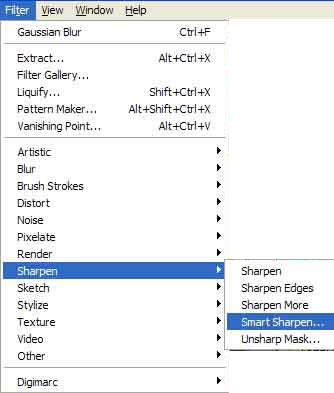
The Smart Sharpen tool can be found by going to the Filter Menu Item and then going in to the Sharpen Menu.
Filter > Sharpen > Smart Sharpen.
You will now see a window called “Smart Sharpen”. This window has an option to choose from Basic and Advanced modes. Below that you will see a Settings drop down menu. This settings drop down menu allows you to save the current settings so you can easily get to them later.Below that you will see Amount and Radius.
So far everything is very similar to the Unsharp Mask tool. The difference will now be apparent because of the Remove options. The Remove Drop down menu has three options. These allow you to remove Gaussian Blur, Lens Blur and Motion Blur. Each option triggers a different algorithm that Photoshop uses to remove these specific types of blurs. Finally, if you choose the Advanced Radio button you will be able to see three tabs: Sharpen, Highlights and Shadows. These allow the user to set the sharpness of the midtones, highlights and shadows. This is useful because sometimes you don’t want the shadows to be as sharp as the highlights (or vice versa) .
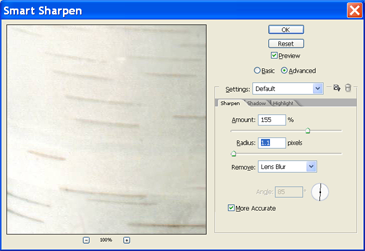
Let’s go over each option available to us:
The Remove Options
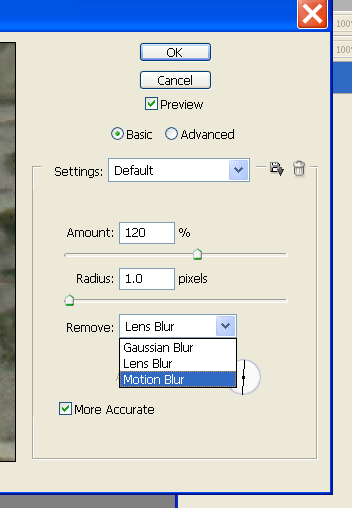
These options allow us to remove blurs caused by the three common types of blurs: Gaussian, Lens and Motion blurs.
Removing Gaussian Blur
The Gaussian Blur is very similar to viewing an image from an out-of-focus lens. If your image has a consistent soft blur with no areas of sharpness then this is the option to use. If the image you are working on is slightly out of focus then applying the Gaussian Blur Removal option will fix that problem. This is very similar to our regular unsharp masking technique. Nothing new here.
(gaussian blur)
(after smart sharpen: remove gaussian blur)
Removing Lens Blur
A lens blur is similar to Gaussian blur but a little different because it is not as soft. The Lens Blur Removal option removes the lens blur while finding edges and not creating obvious halos. This is also useful for images with finer details.
(lens blur)
(after smart sharpen: remove lens blur)
Removing Motion Blur
A motion blur happen when the camera or the subject moves or the camera shutter is open for too long. A faint trail of the subject is formed and there is little sharpness to the image. After choosing the Motion Blur removal option you will see that you are given the option to choose the angle. Just choose the angle that is as close as possible to the direction of the motion blur. The more accurate you are with the angle the better the motion blur will be fixed.
The Motion Blur Removal option works best if the motion blur happens only in one direction. Sometimes the camera may move in many directions and if that happens then the result of this tool is not very great but you can try applying two remove-motion-blur smart sharpens one after the other for each angle in which the motion blur exists.

(motion blur)
(after smart sharpen: remove motion blur)
Advanced Mode
There are times when you might want only some parts of an image sharpened while leaving the rest untouched. There may be times when you want to sharpen parts of an image more than other parts. Put your selection tools back because you probably won’t need them because the smart sharpen tool will take care of everything.
Clicking on the Advanced radio button will bring up three tabs called Sharpen, Shadow and Highlight. The Shadow and Highlight tabs have three sliders called Fade Amount, Tonal Width and Radius.
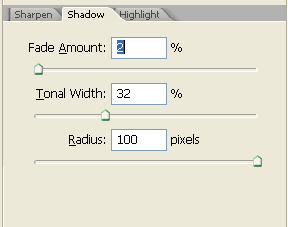
The main advantage of the Advanced mode of the Sharpen tool is that it allows us to set the sharpness of Midtones, Shadows and Highlights individually. Mainly we’ll be controlling what gets sharpened LESS.
- The Fade Amount controls the strength of the sharpening in either areas that are considered shadows or highlights (depending on which tab you are currently in). If you increase the fade amount of shadows then the dark areas of your image will not be as sharp. If you increase the fade amount of highlights then the light areas will not be as sharp. The higher this setting, the more the sharpness decreases. The lower this setting, the more the sharpness increases.
Here is a demonstration of Fade Amount:
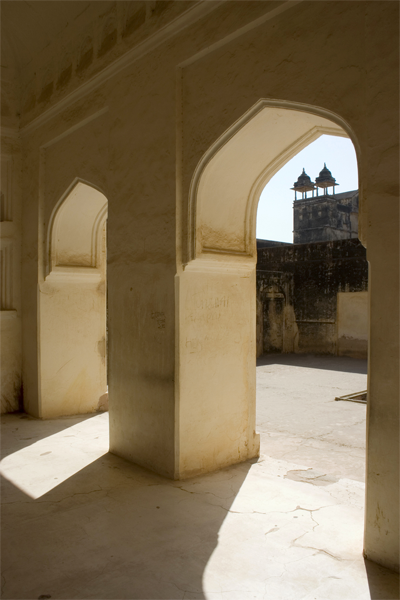
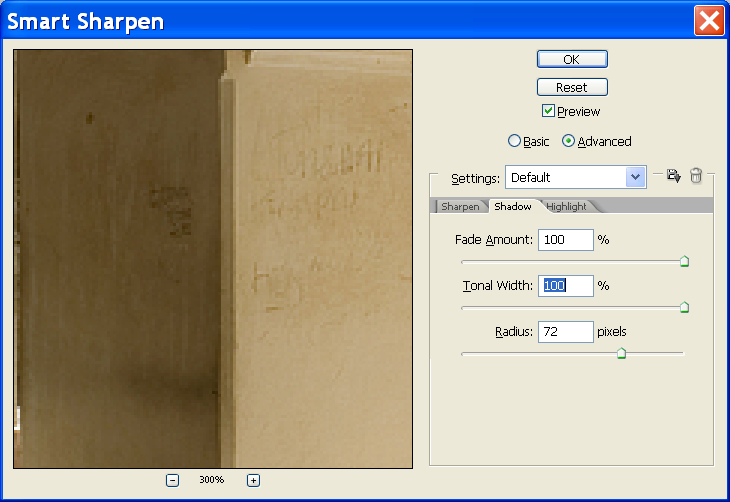
1. Let’s take a look at this Arch thingamajig:
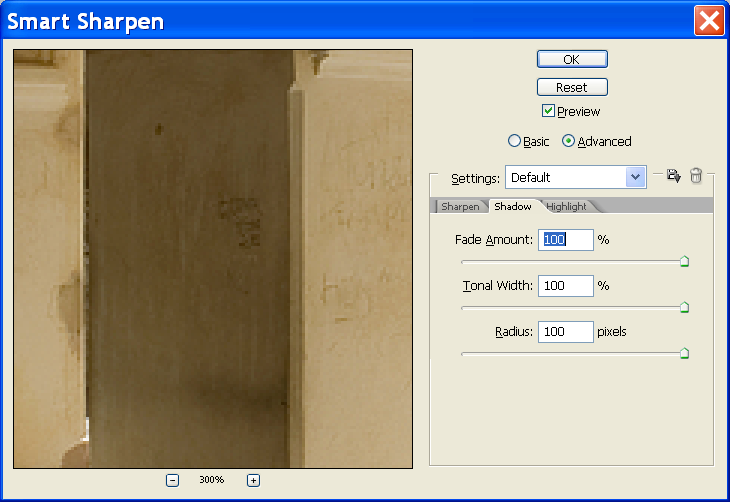
2. I’m going to zoom in to one of the shadows and INCREASE the fade amount to 100%
3. Next, I’m going to DECREASE the fade amount to 0%

4. Did you notice the sharpness of the shadows? When the fade amount of the shadows is 100% then the shadows don’t get sharpened. When you decrease the fade amount to 0% then all the shadows get the full sharpness treatment! Pretty neat!
- The Tonal Width controls which tonal values will be affected by the reduction in sharpness. The tonal width is defined as the difference between the lightest part of the image and the darkest part of the image. The Tonal Width slider determines which tonal values will be sharpened (or not sharpened). If the value of the Tonal Width slider is small then only lightest highlights or darkest shadows (depending on whether you are in the highlights or shadows tab) will be affected by the sharpening reduction. If the value of the Tonal width slider is great then a greater range or highlights or shadows will be affected by the sharpening reduction.
Here is an example:
1. We’ll take the same image again. First I’m going to set the fade amount to 100% (Recall that increasing the fade amount decreases the sharpness). Then I’m going to change the tonal width to 0%. You’ll notice that everything is sharpened despite the fact that the fade amount is 100%. The reason for that is that the Tonal width controls where the sharpness DECREASES. So when you change the tonal width to 0% then the sharpness does not decrease anywhere.
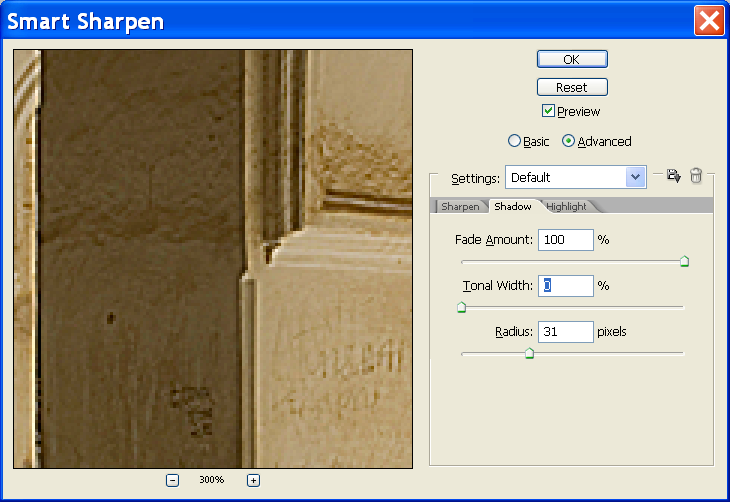
2. Now I will increase the Tonal width to 100% and the sharpeness gets reduced all over the image.
The Radius slider determines which areas are to be considered shadows or highlights. This basically controls the size of the area around each pixel that is used to determine whether a pixel is a shadow or a highlight. A small radius means that small patches of darks and lights will be considered shadows or highlights. A large radius means that large patches of darks and lights will be considered to be shadows or highlights.
Let’s Smart Sharpen an image (Click the images to enlarge) :
1. I’m going to choose the first image I get from http://www.sxc.hu
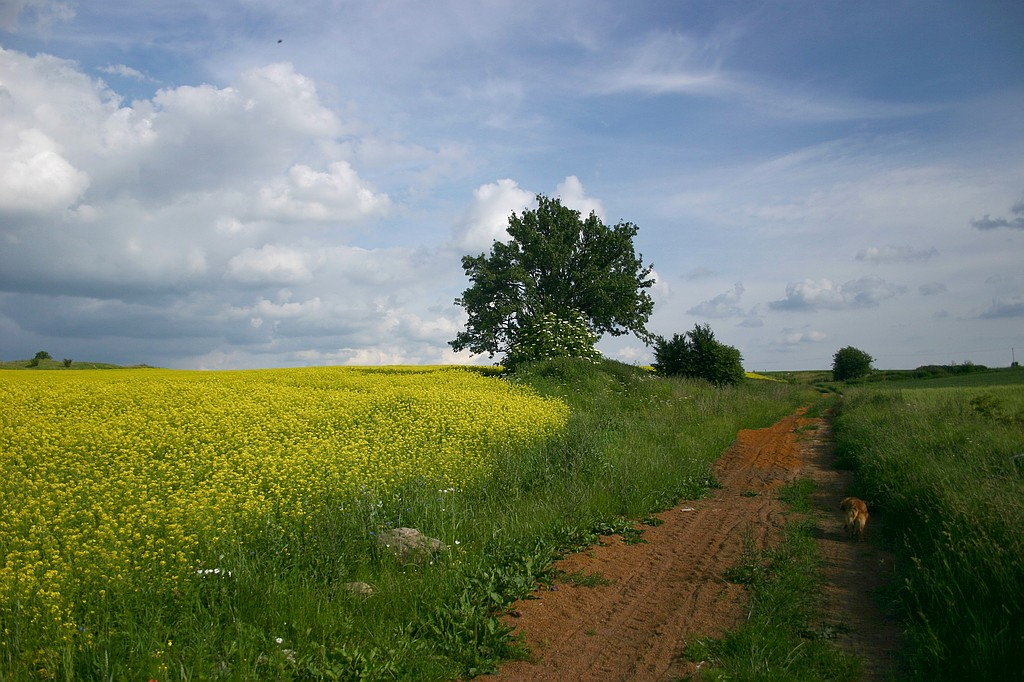
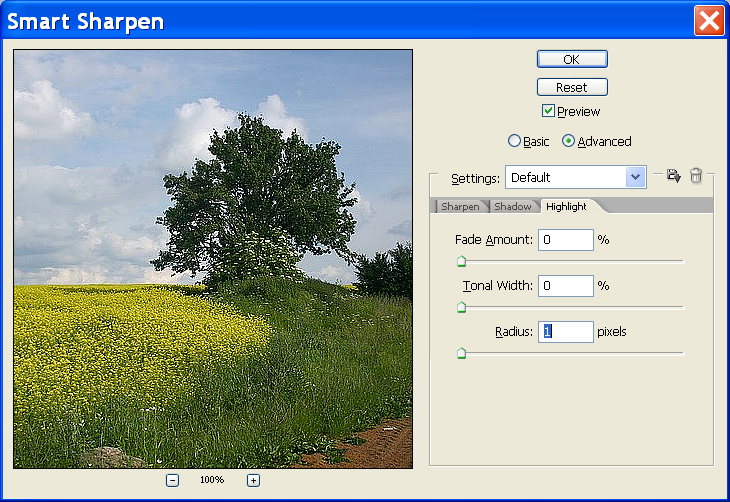
2. Open up the Smart Sharpen Tool (Filter>Sharpen>Smart Sharpen). Choose the advanced radio button and make sure all the settings in Shadows and Highlights tab are set to zero.
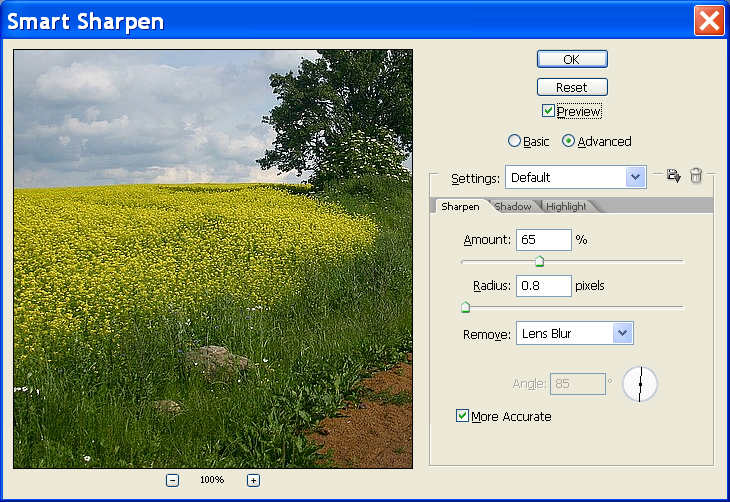
3. Go back to the sharpen tab and adjust the settings mainly to get a good sharp edge. I used the following settings:
4. Now go to the shadows tab. Now we will increase these settings so we can remove as much noise from the shadows as possible. I zoomed into an area with lots of shadow. I used the following settings and it seemed to rid the noise quite well with out loosing sharpness.
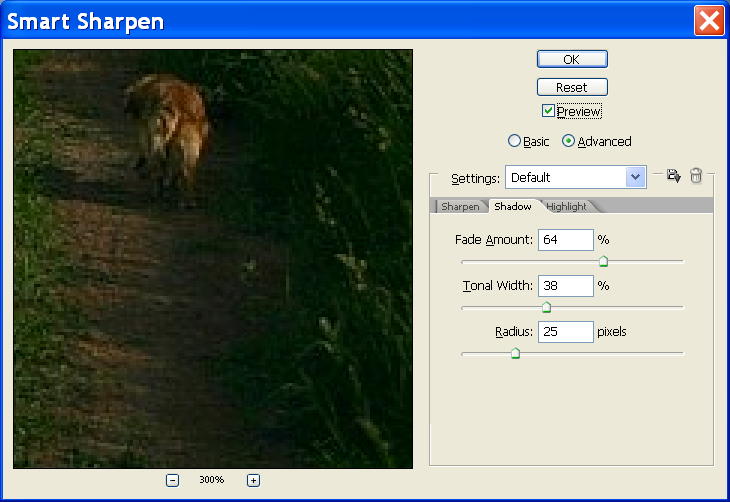
5. Finally I went to the highlights tab and removed as much noise as I could from highlights. I also made sure that the image did retain some softness (your preference).

6. The final image and the initial image has subtle differences and most of the time these subtle differences are what really matter.
Here is another example of sharpness correction:
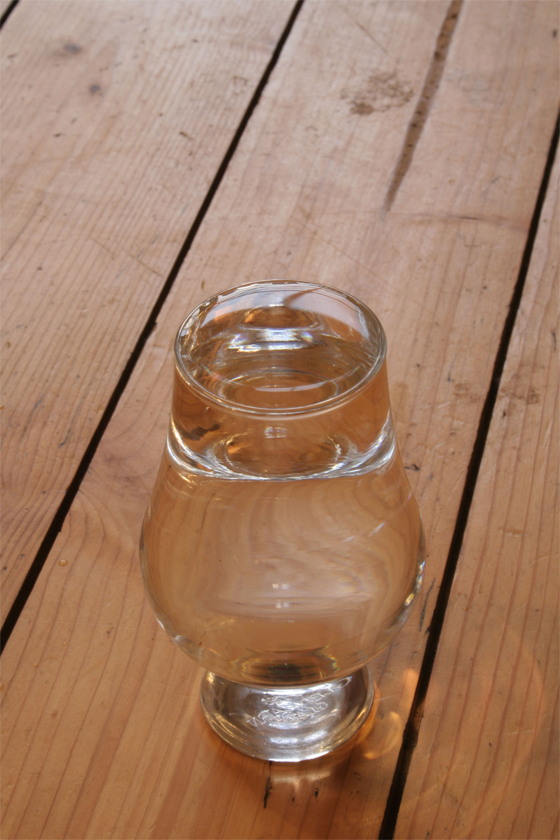
(before)

(after)
I hope you found this tutorial helpful. There are even more sharpness techniques that I will cover in the near future. At this time I feel like creating my next tutorial about something other than sharpness 😀 Thanks for readings. Comments are encouraged.
Pingback: meneame.net
I think you need more ads… seriously. The MASSIVE amount of ads youhave isn’t enough and you should just get rid of content altogether.
John > Sorry if they are annoying. I’m trying different layouts to optimize user experience while also being able to pay my web hosting bill. Thanks for the feedback.
Pingback: Worst amount of ads, ever « TwodBlog: The development blog of Jamie Huskisson
Yikes
Thanks for the tutorial.
This was really helpful, thumbs up!
Very good tutorial. Where are all these ads people are talking about? When I was in sales it was people who rejected (said no or did not what ads sent to them) the most were the ones most likely to buy. So I guess those that have a problem with the ads are getting the impulse to spend.
Thanks Aaron 🙂
Ads? I don’t see any ads. Some people need to get the Adblock + Filterset extensions for firefox.
Pingback: Huh? » Blog Archive » Smart Sharpen at Photoshop Tips
nice tutorial. thanks for taking the time to right it.
truthfully i never noticed any add while reading.
Thank you dean 🙂 I’m glad you found it useful.
The ads are on the top, bottom and to the side of the tutorial 🙂
So, those are the ads? I didn’t even notice them. Anyways, awesome tutorial. I now have something to do today.
Pingback: 10 Photoshop Tutorials to take your Photography from Good to Great
Thank u for ur tips
Pingback: Customized Design Solutions
Hi,
GREAT tutorial, was looking for something like this for a while now.
The ads on this site is minimal! I’ve been to sites where you can barely make out which is tutorial content and which is ads.
Great site.
Wow! What a great, detailed write-up! I am definitely going to give smart sharpen a spin. I read about it in Real World Image Sharpening by Bruce Fraser, but this is a great run through with great examples. thanks!
Hey, I write a blog for new photographers here: shaunkrisher.wordpress.com
I daresay that it is the MOST IMPORTANT BLOG ON THE WHOLE INTERNET.
Thanks Khurrum,
I was completely mystified by the apparently backward behavior of the advanced controls and by the fact that Adobe couldn’t be bothered to document them.
BTW, the advanced controls do not appear to turn off if you click Basic and they keep their settings until you change them even if you close and reopen the filter dialog. To turn them off you have to set either the Fade Amount or Tonal Width (or both) sliders to zero.
I haven’t proven it yet, but I think the Tonal Width windows are anchored at one tonal extreme and can extend all the way to the other. So, if you wanted to sharpen only the upper (brightest) 30% of the tonal range, you would set the Highlight controls to zero and on the Shadow tab you’d set the Tonal range to 70% and the Fade Amount to 100%.
Unless I’m wrong 🙁
Thanks for the help! I just discovered how much of a difference sharpening can make.
Thanks so much for explaining this so clearly!
Best wishes,
Jamie.