Akvis Chameleon Plug-in v3 Released

18 Oct 2005 In: Photoshop News

photoshop plugin

(Press release) The Chameleon plug-in allows inserting a copied object into a picture in such a way that it adapts to the new color range and blends with the background. Designers would especially appreciate this tool as it allows them to combine images with entirely different color ranges, to create the effect of drawing on a texture surface (crumpled paper, wood, etc), and all that with only a mouse-click.

The new version of AKVIS Chameleon supports 16 bits per channel and allows processing images in color modes RGB, CMYK, Lab and Grayscale. This gives you the opportunity to process images without quality loss. With 16 bit there is more in-between colors and tones and the result is smoother, which is especially important if you prepare photos for printing.

AKVIS offers a 10 day fully functional free trial. Users who tried the previous version of Chameleon and have their version expired, can now test the software again. Registered users of previous versions of AKVIS Chameleon can upgrade to V.3.0 for free. More information about Chameleon is available at the Akvis website.

Retails for $ 69

Example:

example of plugin

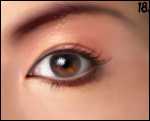
Eye Tutorial Screen Shot Linda Bergkvist of furiae.com has a very detailed step by step tutorial on how to paint realistic eyes over at CGNetworks.

I remember that a few years ago she once did this before but it was only for members of her forum. This one, however, is far more detailed and has far better explanations and results.

Click here for the Tutorial

Click here to go to Linda’s site

Eye picture is ©Linda Bergkvist

Halloween is coming up quickly and before we know it we’ll be trying to carve up some pumpkins. Everyone has seen the regular jackolantern design with the 2 triangles for eyes and the zig zag mouth. How about trying something different this year?

Using Photoshop you can easily and quickly create a stencil that you can use to carve up pumpkins.

The first step is the most important. Find an image that has enough shadows and shapes so that we can carve a face with out having the pumpkin break up. For this tutorial I’m going to use a screen shot from The Exorcist. The picture can be disturbing for some people so be careful when you click on more:-

Read the rest of this entry »

Restoring Critically Damaged Photos

7 Oct 2005 In: Tutorial Links

Informit.com has a detailed about repairing damaged photographs in Photoshop. It provides some very useful tips. It is divided into the following sections:

  1. 1. Starting Out Right
  2. 2. Working Smarter
  3. 3. Photoshop Tools
  4. 4. Creating Reversible Fixes
  5. 5. Performing Major Surgery Step-By-Step
  6. 6. Fixing a Damaged Print
  7. 7. Solving the Case of the Missing Data
  8. 8. Summary

The article link is: http://www.informit.com/articles/article.asp?p=418667&rl=1

Photoshop KeyStrokes

7 Oct 2005 In: Photoshop Tips, Photoshop Tutorials

After playing around with Photoshop for many years I have started using my keyboard to do useful stuff a lot. This was recently brought to my attention when someone commented on how I used the keyboard to Crop and Deselect images quickly. I am now going to try and compile a semi complete list of Photoshop Keystrokes that are the most useful.

First the regular File menu keystrokes that you should remember are:

  • New File: CTRL+N
  • Open File: CTRL+O
  • Save File: CTRL+S
  • Save As: Shift+CTRL+S
  • Save for Web: Shift+Alt+CTRL+S
  • Print: CTRL+P

We’ll be opening and closing and saving for almost every single document that we work on. By memorizing these you will be saving your selves a lot of clicks.

Next are the Edit Menu keystrokes. You must know these in order to become an efficient photoshop artist. The ones I most frequently use are:

  1. Step Backwards: ALT+CTRL+Z
  2. Step Forward: Shift+CTRL+Z
  3. Cut: CTRL+X
  4. Copy: CTRL+C
  5. Paste: CTRL+V
  6. Free Transform: CTRL+T

AND:

  1. Merge Down: CTRL+E
  2. Select All: CTRL+A
  3. Deselect: CTRL+D
  4. Inverse Selection: CTRL+SHIFT+I
  5. Repeat Last Used Filter: CTRL+F
  6. Brushes Palette: F5
  7. Color Palette: F6
  8. Layers Palette: F7
  9. Zoom in: Ctrl+”+”
  10. Zoom out: Ctrl+”-”
  11. Switch between foreground and background colors: X

Now the rest of the keystrokes that I use aren’t actually official keystrokes that Adobe has meant for us to use (well they have… but well.. read on). For example, if I want to desaturate an image the “official” keystroke is Shift+CTRL+U. I don’t know about you but I want to memorize the least amount of stuff as possible. Basically, if you hold down the ALT key (in windows atleast. I’m not sure about Macs) all the menu items will show one underlined letter. While holding down the alt key press the underlined arrow and that menu is displayed. With out letting go to the alt key continue pressing all the letters till you get to what ever it is you need. So instead of remembering Shift+CTRL+U for desaturation I’ll just press ALT+I+A+D.

The following are some important “unofficial” keystrokes:

  1. Levels: Alt I-A-L
  2. Feather: Alt S-F
  3. Image Size: Alt I-I
  4. Crop: Alt I-P
  5. Stroke: Alt E-S

Obviously there are tons more. It is up to you, the artist, to decide which ones will save you the most time. I believe that the key strokes that I have listed above are the most useful ones that everyone should know. If I remember some more then I will add them to this page!

The best way to memorize these is by actually using these. I, personally, never sat down and memorized these keystrokes. Just use them enough times and they’ll become second nature to you!

Please post any keystrokes that you use often but I have missed.
About this blog

Photoshop Tips is a blog community of Photoshop artists and designers. You will be able to find great original photoshop tutorials written in a very simple and helpful way in order to teach you photoshop for free!

Feel free to browse the site and leave comments and suggestions! ^__^


Sponsors